
How to Check Rideshare Availability in Your Area

Last Updated: October 31, 2026
Quick Summary
To check rideshare availability in your area, enter your exact pickup address in the app and look at the nearby drivers and estimated pickup time. Rideshare availability changes with time of day, location and events, so repeat the check before you travel.
- Use your exact standing point as the pickup pin, not the nearest main road.
- Check the estimated arrival time, which is a better guide than the number of cars.
- Repeat the check 15 to 30 minutes before you leave in outer suburbs.
- Compare apps using the same pickup point at the same time for a fair result.
Table of Contents
- Why Rideshare Availability Changes Across Your Area
- Step-by-Step: How to Check Rideshare Availability in Your Area
- Which Rideshare Apps Are Available in My Area
- How to Check Rideshare Availability for a Future Trip
- Reading Your Fare Estimate and Wait Time Before You Book
- Booking Your First LEFKO Ride in Your Area
- Frequently Asked Questions
Why Rideshare Availability Changes Across Your Area
Rideshare availability is rarely the same from one street to the next. A driver free in the Sydney CBD at 8am may be hours from a western suburb.
Rideshare availability is the number of drivers who can reach your pickup point within a reasonable wait time.
Three things usually drive the change:
- Time of day: Morning and evening peaks fill up quickly.
- Location: Busy inner areas often have more drivers, while outer suburbs can have fewer.
- Events and weather: Concerts, sport and rain all push demand up fast.
A short wait in one spot can become a long one a few streets away. Checking before you leave helps you plan around that.
Step-by-Step: How to Check Rideshare Availability in Your Area
Checking availability is quick, but reading the result correctly is what saves you from a long wait. Most riders tap the app, see a pin and a time, and assume that is the whole story. It is not, three different things are shown at once.
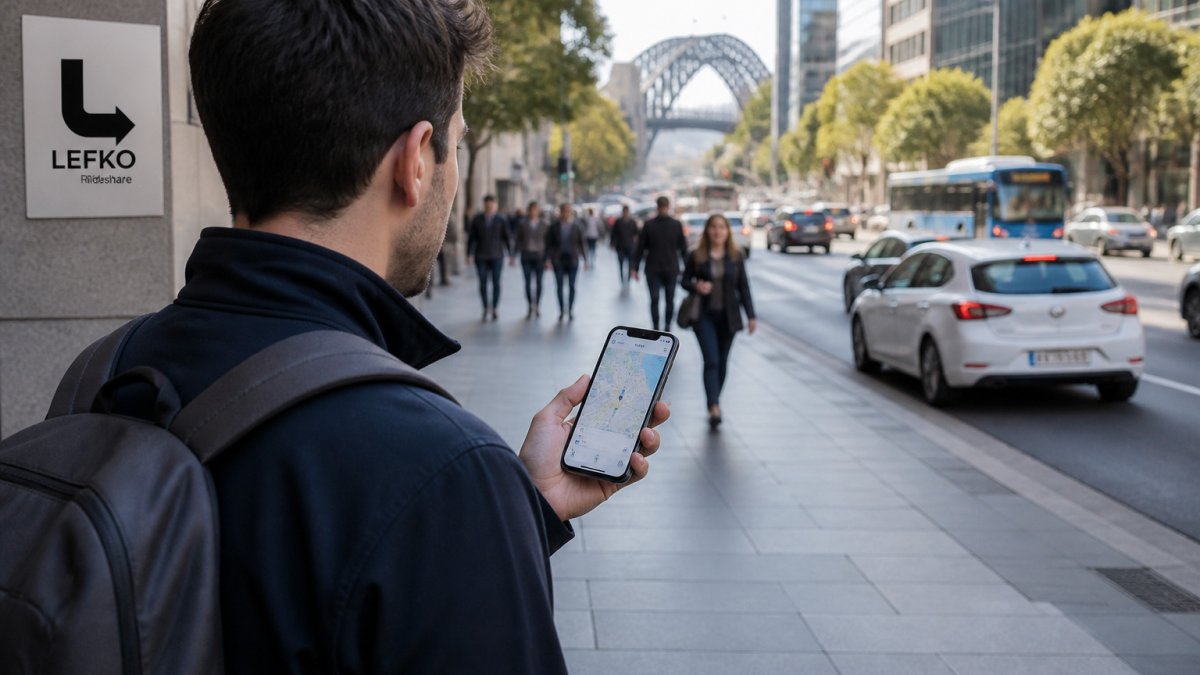
What availability actually means
When an app shows cars near your pin, you are seeing a mix of three separate signals:
- Service coverage: whether the provider operates in your suburb at all. This is a yes or no, and it rarely changes day to day.
- Drivers online: how many drivers currently have the app open and are accepting trips near you. This changes minute to minute.
- Bookable now: whether a specific driver will accept your trip at the fare shown. A car can be visible on the map and still decline your request if it is finishing another trip or heading the other way.
A suburb can have coverage and drivers online but still show a long wait because demand is high. A quiet area can show no cars simply because no one is online, not because the service does not operate there. Separating these three signals is the difference between a useful check and a guess.
Entering your pickup location and searching by suburb or address
Start by opening the app and entering your pickup point. You can type a suburb, a street address or a landmark.
- Use the exact address where you will stand, not the nearest main road.
- Confirm the pin sits on the correct side of the road, a pin across a divided road can add several minutes.
- Check the suburb name near a boundary, because coverage and fare zones can differ street by street.
A pin placed a block away can show different cars, a different wait and a different fare than the ones that would actually reach you.
Viewing nearby drivers and real-time availability
Once your pickup point is set, the map shows nearby drivers and an estimated pickup time. This is real-time availability, and it updates as drivers move.
A few tips help you read the map:
- Look for several cars close to your pin. More cars usually means a shorter wait, but only if they are moving toward you.
- Check the estimated arrival time before you confirm, it is a better guide than the number of cars alone.
- Refresh the screen if the view looks stale. Maps can lag by a minute or two on a weak connection.
If you see no cars, try a nearby pickup point or come back in 10 to 15 minutes. Availability in low-demand areas can swing quickly as a single driver comes online or finishes a trip.
Troubleshooting inaccurate or unavailable results
If the map looks wrong or the app will not show availability, work through these checks in order:
- Location permissions: confirm the app has permission to use your location while it is open. If you have denied it, the app may default to a city centre rather than your street.
- Pickup pin placement: drag the pin to your exact standing point and confirm the address shown matches. A pin dropped on a motorway or in a park can return no results.
- App updates: an out-of-date app can show stale maps or fail to load drivers. Check for updates in your app store.
- Connection: switch between Wi-Fi and mobile data if the map will not refresh.
- Alternate pickup points: try a nearby cross street, shopping centre or station entrance. Some locations are flagged as unsafe or illegal to stop at, and the app may show no availability there even when drivers are nearby.
Checking availability before travel or without an account
You do not always need to sign in to see whether cars are nearby.
For advance planning, repeat the check at the time of day you expect to travel. Availability at 7am on a Tuesday tells you very little about 11pm on a Saturday.
The three signals an app shows when you check availability, and what each one tells you:
| Signal | What it means | How it changes |
|---|---|---|
| Service coverage | Whether the provider operates in your suburb at all | Rarely changes day to day |
| Drivers online | How many drivers have the app open near you | Changes minute to minute |
| Bookable now | Whether a specific driver will accept your trip at the fare shown | Can differ from what the map shows |
Which Rideshare Apps Are Available in My Area
Different rideshare services cover different areas and hours, and no single app is best everywhere. Check each app with the same pickup point and compare like with like. The goal is not the app with the most cars on the map, it is the one that will actually collect you at the time you need.
A neutral way to compare services
Use the same four checks for every app you try:
- Coverage in your suburb, not the city centre. Enter your exact address and see whether the app returns a fare and a wait. A service that works in the CBD may not operate two suburbs out.
- Wait time at your travel time. Check at the hour you actually travel. Plenty of cars at lunchtime may mean none at 6am.
- Vehicle type. Confirm the app offers the vehicle you need, a standard car, a larger vehicle for luggage, or a van for groups.
Run the same pickup and drop-off in each app within a few minutes of each other. Availability moves, so a comparison spread over an hour tells you less than one done back to back.
How coverage differs between urban, suburban and rural areas
Coverage is not uniform, and the pattern is fairly consistent across providers:
- Inner urban areas: usually the deepest supply, with short waits at most hours. The trade-off is higher demand at peak times, which can push fares up.
- Suburban areas: coverage is usually good during commuting hours but thins out late at night and on weekends. A suburb with ten cars at 8am may have one at 11pm.
- Rural and low-demand areas: coverage may exist on paper but drivers can be sparse. Waits are longer and less predictable, and a single driver going offline can turn a five-minute wait into twenty. Checking shortly before you travel matters more than checking a day ahead.
For outer suburbs and regional areas, check twice: once the day before to confirm the service operates there, and again 15 to 30 minutes before you leave to see whether a driver is actually online.
What to do when only one service covers your area
If only one app returns a result for your address, you are relying on a single supply pool. That is a reason to check closer to your travel time and to have a backup plan.
LEFKO Rideshare operates in Sydney, Melbourne and Brisbane. You can book a rideshare in Sydney, book a rideshare in Melbourne, or book a rideshare in Brisbane through the app, depending on where you are.
How to Check Rideshare Availability for a Future Trip
You can check availability ahead of time to plan your trip.
- Enter your planned pickup location in the app.
- Set the time you expect to travel, if the app allows it.
- Note the typical number of cars and wait times.
- Repeat the check at a different time to see how the picture changes.
This works well for early flights, late events and school runs. A quick check the day before can prevent a stressful wait.
Reading Your Fare Estimate and Wait Time Before You Book
Before you confirm, the app shows a fare estimate and a pickup time. Both matter when you plan.
- Fare estimate: This shows the likely cost. LEFKO Rideshare fare estimates are GST-inclusive, so the figure you see includes GST.
- Wait time: This is how long until the driver reaches you. A shorter wait is useful when you are in a hurry.
Fares can change with distance, trip time and tolls. Check the breakdown in the app before you book, or visit the LEFKO website for current pricing details.
Watch out: Higher demand at peak times can affect fares and waits. If you can travel a little earlier or later, you may pay less and wait less.
Booking Your First LEFKO Ride in Your Area
Booking your first ride takes only a few minutes.
- Download the app and create your account.
- Enter your pickup and drop-off points.
- Check the nearby cars and the fare estimate.
- Confirm the booking and wait for your driver.
If you are ready to get started, you can open the LEFKO Rider app to book a ride.
Frequently Asked Questions
How can I tell if a rideshare service is available in my area?
Open the app and enter your current location or a suburb or address in the pickup field. If the app shows nearby vehicles, an estimated wait time and a fare estimate, the service operates there. If the app asks you to set a pickup point outside its service area, or shows no vehicles at all, it is not currently available at that location. Coverage can differ between suburbs in Sydney, Melbourne and Brisbane, so check each address you travel between rather than relying on the city name alone.
Can I check rideshare availability without requesting a trip?
Yes. Most rideshare apps let you enter a pickup location and view nearby vehicles or an estimated pickup time without confirming a booking. You can also get a fare estimate before you commit. Check the app's terms if you are unsure, and remember that the map shows current conditions, so availability may change within minutes.
Does seeing a fare estimate mean a driver is available?
Not necessarily. A fare estimate calculates the likely cost based on distance, time and any applicable booking fees, and it can appear even when few drivers are nearby. Availability is shown separately, through nearby vehicle icons and an estimated pickup time. If the estimate appears but no vehicles are shown, the request may take longer to match or may not be matched at all during busy periods.
How do I check rideshare availability for a future trip?
Check availability for your pickup and destination in the app close to your departure time, as demand and driver numbers can change quickly. Check again on the day, especially for early mornings, late evenings or events, when demand and driver numbers can change quickly.
Checking rideshare availability before you leave takes less than a minute and saves time. Use the steps above each time you travel, and you will quickly learn which times and places work best for you.
